
Estimated reading time: 12 minutes
The Platform Fragmentation Problem
Rich UI in AI responses sounds simple until you realize:- ChatGPT renders widgets in iframes with specific security rules
- Claude has limited UI support
- OpenAI Apps SDK expects specific metadata formats
- Each platform has different CSP (Content Security Policy) requirements
- You can’t use external scripts or stylesheets
Most developers give up and return plain text.
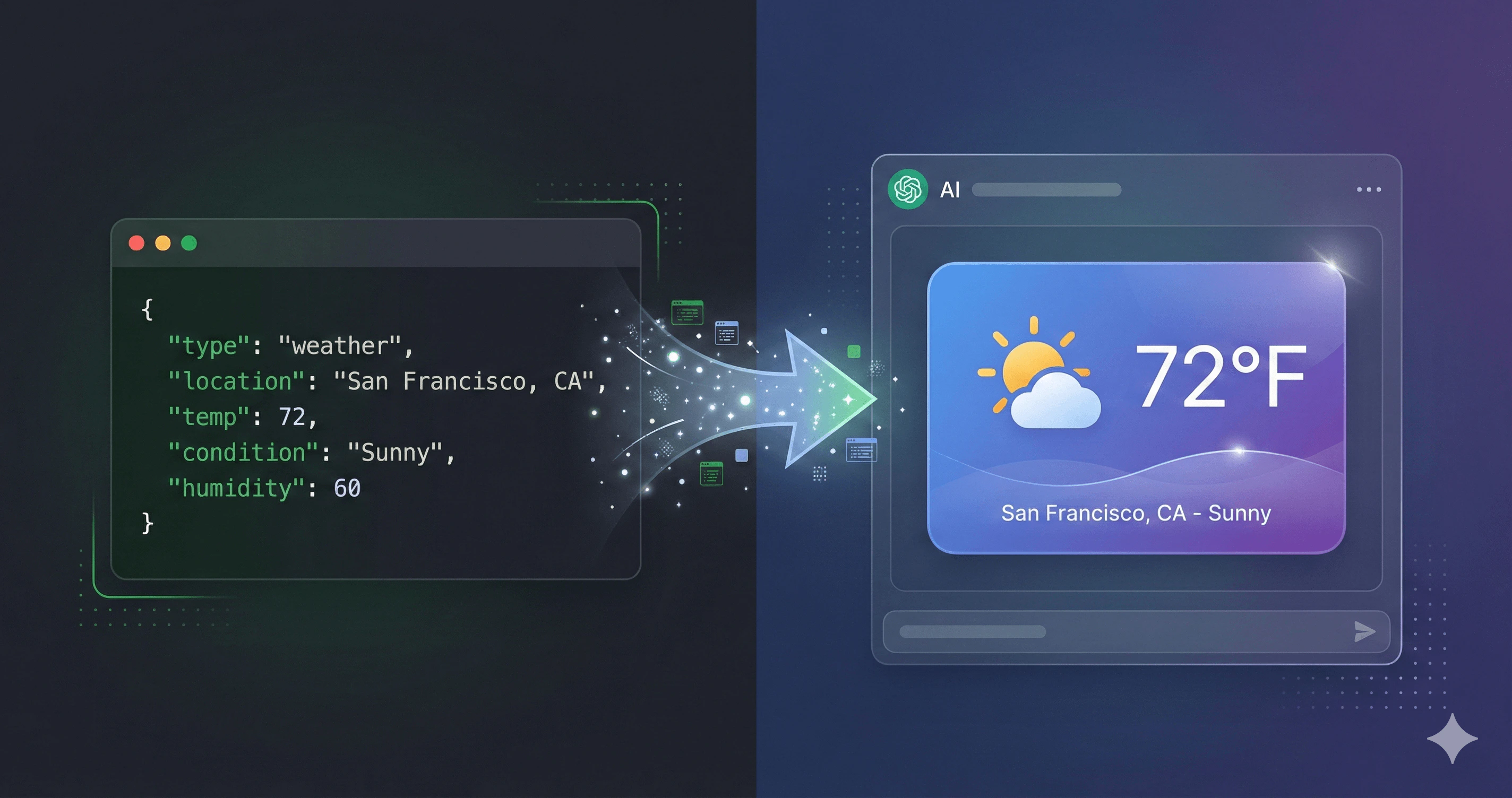
FrontMCP handles all of this automatically. You write one template, and Tool UI adapts it to each platform.
What is Tool UI?
Tool UI is a rendering system built into FrontMCP that:Type-Safe Templates
Template functions receive typed
input and output based on your Zod schemas. TypeScript catches errors before runtime.Platform Aware
Automatically detects ChatGPT, Claude, ext-apps, and custom clients. Renders appropriately for each.
Security Built-In
XSS prevention, safe JSON embedding, Content Security Policy—all handled automatically.
Graceful Degradation
If a platform doesn’t support UI, your tool still returns structured data. Never fails silently.
Your First Widget
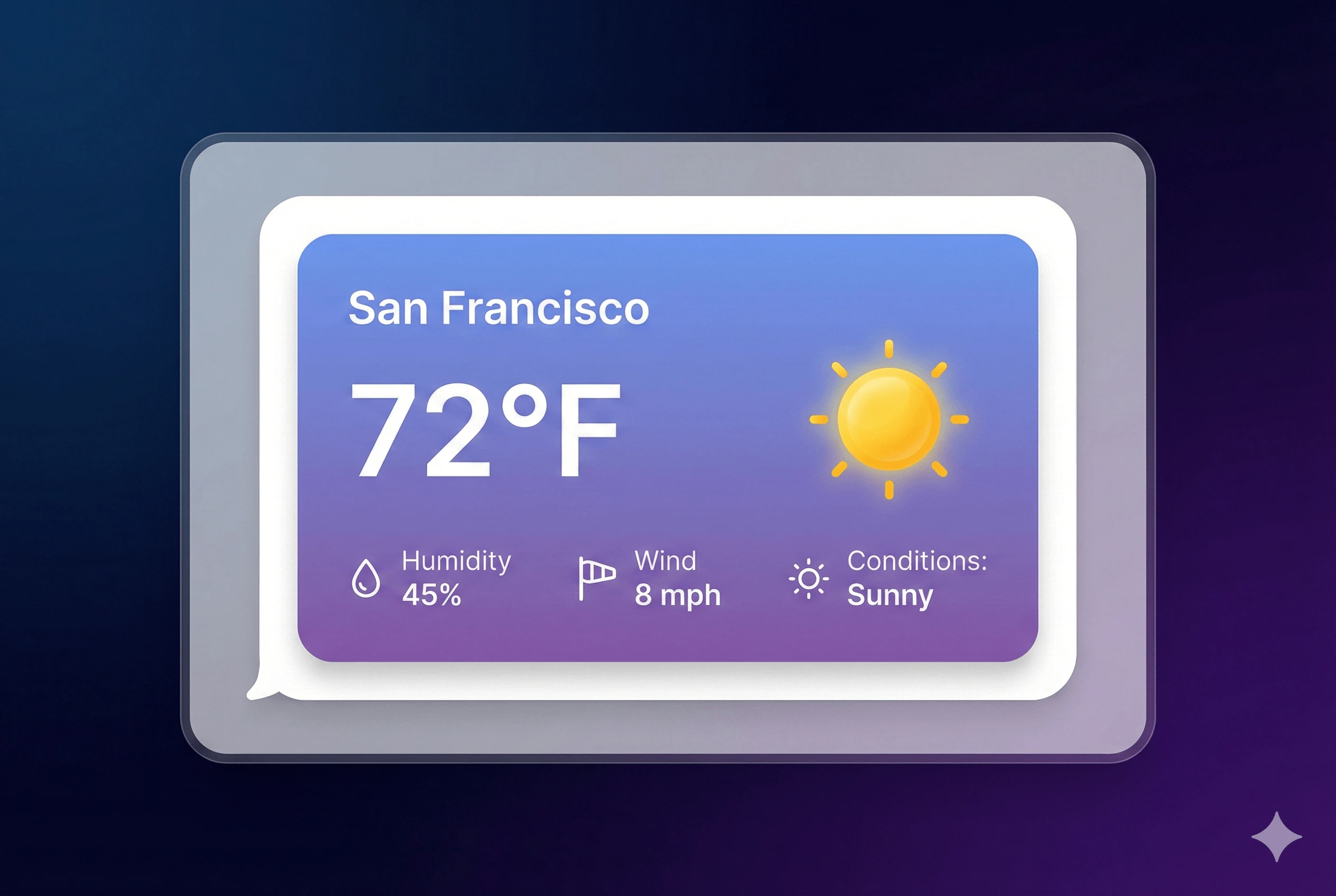
Let’s add a UI widget to a weather tool. Start with a basic tool:ui property:
Template Context API
Thetemplate function receives a context object with everything you need:
Type Safety
BecauseinputSchema and outputSchema are Zod schemas, TypeScript knows exactly what’s available:
Serving Modes
Tool UI supports four serving modes, each with different trade-offs: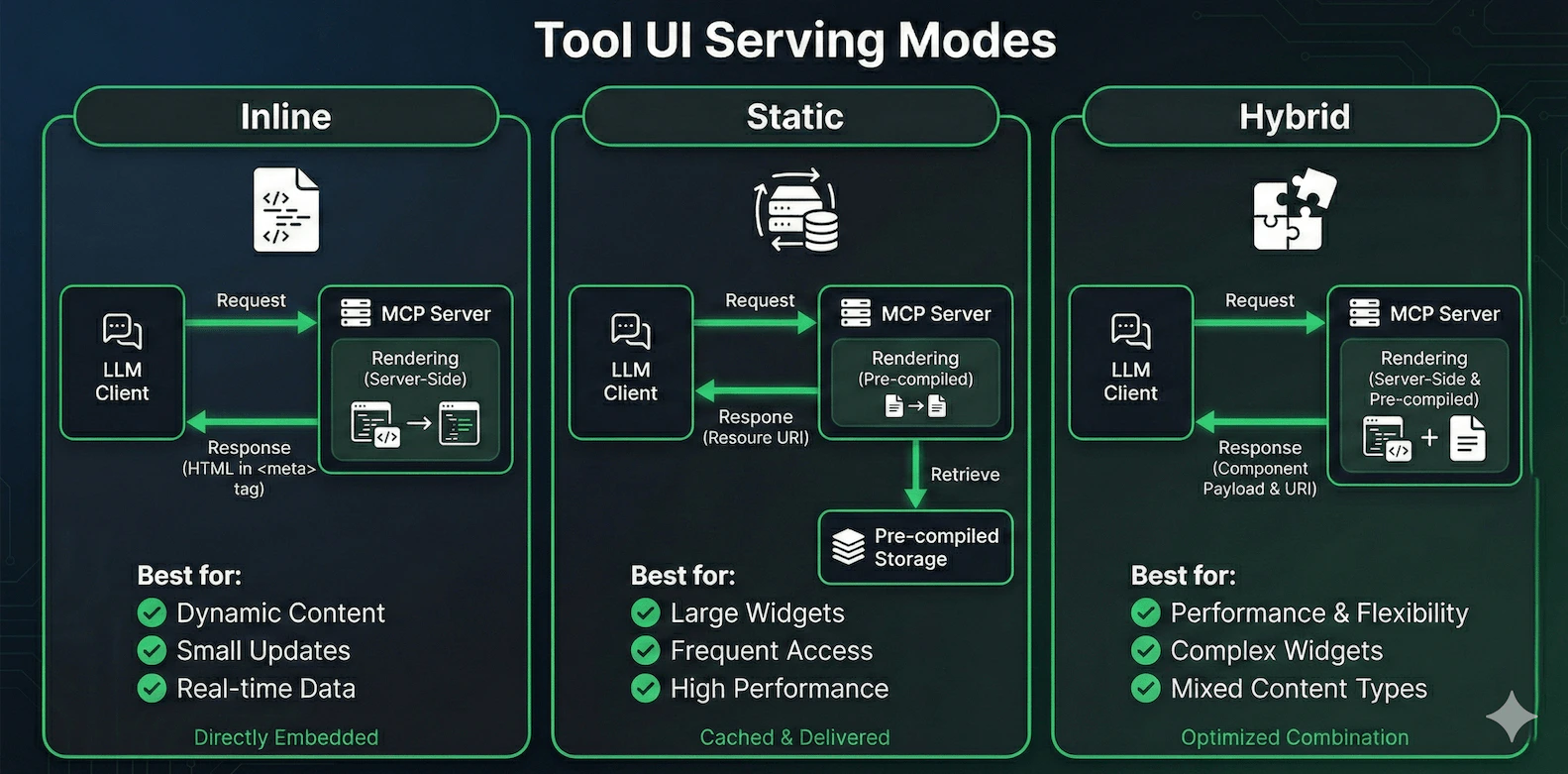
- Inline (Default)
- Static
- Hybrid
- Auto (Recommended)
Renders HTML on every request, embeds in response metadata.Pros:
- Fresh content every time
- Simple to implement
- Works with all platforms
- Larger response payload
- Rendering overhead per request
Using @frontmcp/ui Components
Writing raw HTML gets tedious. FrontMCP provides two approaches: HTML string functions for simple templates and React components for interactive widgets.HTML String Components
Import from@frontmcp/ui/components—these functions return HTML strings:
React Widgets (Static Mode)
For complex, interactive widgets, create a separate React component file. FrontMCP bundles these at server startup and serves them as static widgets: 1. Create the widget file (widgets/weather-widget.tsx):
Choosing Your Approach
Available Components
card()
Container with title, subtitle, and actions
badge()
Status indicators and labels
button()
Interactive buttons (for MCP Bridge)
descriptionList()
Key-value data display
table()
Tabular data rendering
alert()
Status messages and notifications
Full Component API Reference
Full Component API Reference
HTML String Components (
@frontmcp/ui/components):card(content, options)- Card containerbadge(text, options)- Status badgebutton(text, options)- Clickable buttondescriptionList(items, options)- Key-value pairstable(columns, data, options)- Data tablealert(content, options)- Alert messageform(content, options)- Form containerinput(options)- Text inputselect(options)- Dropdown selectmodal(content, options)- Modal dialog
@frontmcp/ui/react) - for static widgets:<Card>- Card container with title, subtitle, actions<Badge>- Status indicators and labels<Button>- Clickable buttons with loading state<Alert>- Info, success, warning, danger alerts
@frontmcp/ui/react/hooks) - for interactive widgets:useToolInput<T>()- Get typed tool inputuseToolOutput<T>()- Get typed tool outputuseCallTool(name)- Call another tool from widgetuseTheme()- Access theme contextuseMcpBridge()- Low-level bridge access
Security Features
Tool UI has security built in at multiple layers:XSS Prevention
TheescapeHtml() helper escapes dangerous characters:
Safe JSON Embedding
Need to pass data to JavaScript in your widget?Content Security Policy
FrontMCP generates appropriate CSP headers for each platform:Platform Behavior
ChatGPT (OpenAI Apps SDK)
ChatGPT renders Tool UI widgets in an iframe: The widget can access tool output viawindow.openai.toolOutput for static serving mode.
Claude
Claude has limited UI support. Tool UI gracefully degrades:- Widgets are not rendered
- Tool returns structured JSON as usual
- Claude summarizes the data in natural language
Custom Clients
For custom MCP clients, Tool UI metadata is available in_meta:
Advanced: MCP Bridge
For truly interactive widgets, use the MCP Bridge to call tools from within the widget:MCP Bridge is only available in platforms that support it (currently ChatGPT with OpenAI Apps SDK). Use feature detection before calling
window.frontmcp.Real-World Example: Complete Weather Widget
Here’s a production-ready weather widget with all best practices:Get Started
Tool UI Documentation
Complete API reference for templates, components, and configuration
Component Library
Browse all available UI components with examples
Platform Integration
Deep dive into ChatGPT, Claude, and custom client support
MCP Bridge Guide
Build interactive widgets that call back to your tools
Tool UI is part of FrontMCP’s mission to make AI tools feel native and beautiful. Combine it with Agents for autonomous workflows and deploy to Vercel for global edge performance. Star us on GitHub to follow development.